EEPROM Burning 0x9540 -> 0x9520 to be able to use the below readers on a Mac |
|||
|
Works on the following IOGear CAC reader models: GSR202, GSR202V, GSR203, & GSR205 (USB type C reader) 1. Information
Some IOGear CAC readers have a firmware version that will not work on a Mac
(0x9540), this page will show you how to change it to 0x9520, which will
work on your Mac using a program called EepromMP.
2.
This procedure
must be completed using a Windows computer (or Bootcamped Mac), it will not
work using a virtual version of Windows (i.e. Parallels, VMware, or Virtual
Box)
2.1
Install the AU9540_V1.7.2.0 driver (from the CD in the box), then plug in
the GSR202, GSR202V, GSR203, or GSR205 to your Windows computer.
You may also download it from:
http://www.iogear.com/support/dm/driver/GSR202
2.2
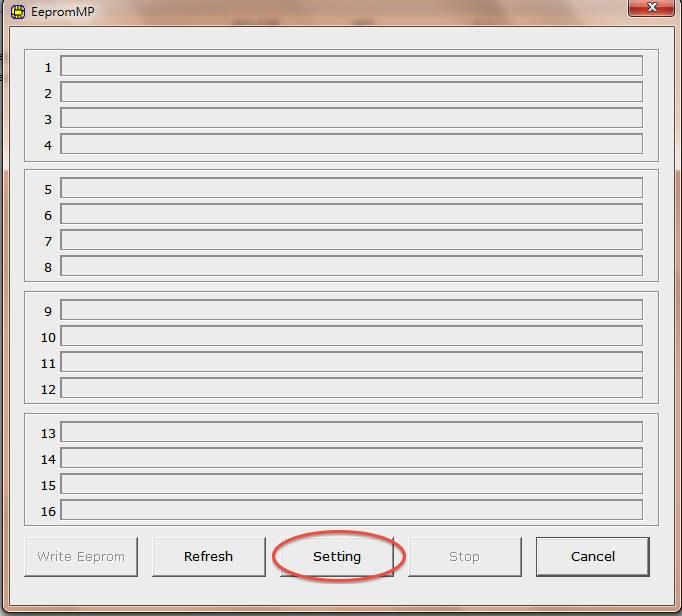
Double click EepromMP.exe found at:
http://militarycac.com/CACDrivers/iogear/AU9540_EEPROM.zip
AU9540 reader will look like Figure
1.
Click the Setting
button
(DO NOT insert your CAC in the reader).
Figure 1
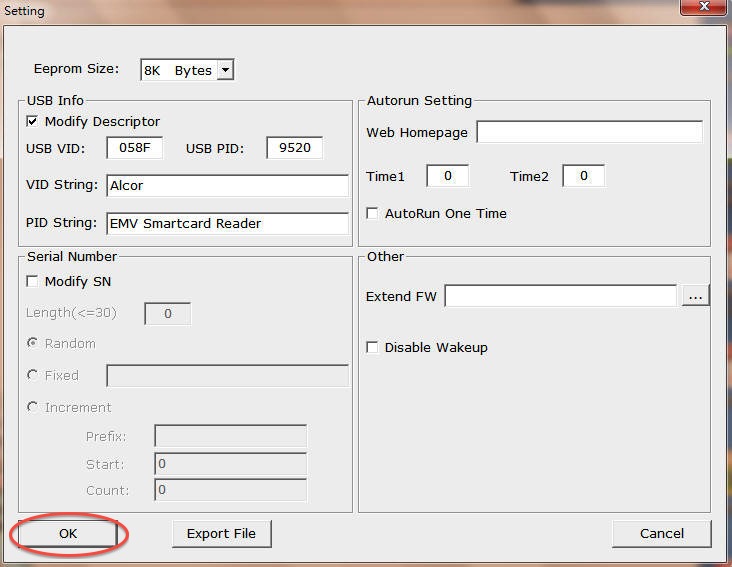
2.3 Match
your screen to the information below completely, and then click
OK to go back to
the main page. (Figure 2)
Figure 2
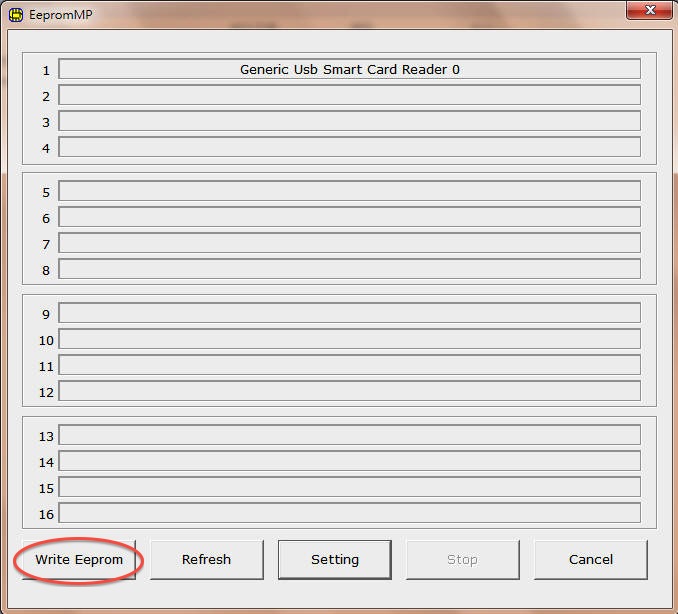
2.4
Click Write Eeprom
to program the external EEPROM. (Figure 3)
Figure 3
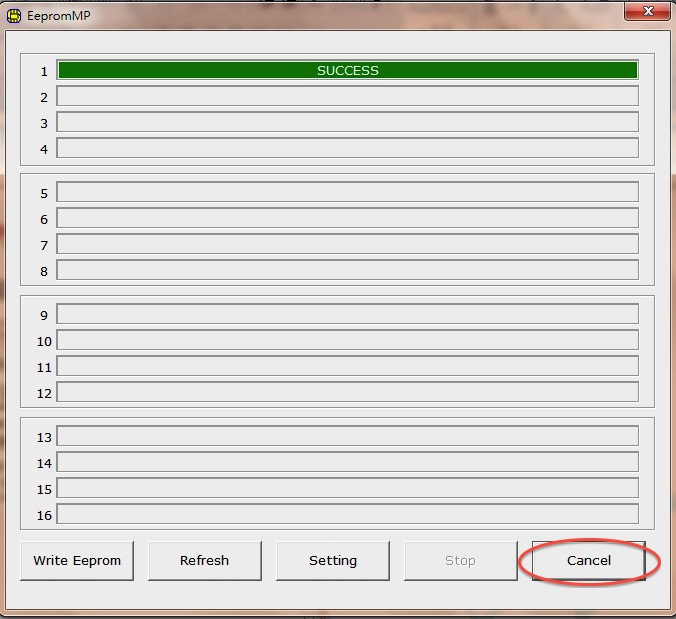
2.5 When write Eeprom is finished, a
SUCCESS message
will be displayed (Figure 4)
(DO NOT insert your CAC).
After the task is finished, click
Cancel to quit
the program
Figure 4
2.6
Unplug
the reader, and then plug it
back into your computer
(very important step)!
2.7
You are finished. Try your CAC
reader on your Mac now.
|
|||
If you have questions or suggestions for this site, contact Michael J. Danberry
Last Update or Review: Sunday, 03 April 2022 13:01 hrs
The following domain names also resolve to the same website: ChiefsCACSite.com, CommonAccessCard.us, CommonAccessCard.info, & ChiefGeek.us
|