DEPARTMENT OF DEFENSE
(DoD) ENTERPRISE EMAIL (DEE)
INFORMATION PAGE
Email address and storage provided by:
Defense Information
Systems Agency (DISA) |
||||||
Enterprise Webmail link:
PLEASE keep your information updated in the Global Address List (ONLY YOU can do this)
NEWS: DoD Enterprise Email will be Sunsetted on 31 March 2022
In the Under Secretary of the Army memorandum regarding Enterprise Email, the @mail.mil email address is the default email address on all new CACs issued since 6 January 2014.
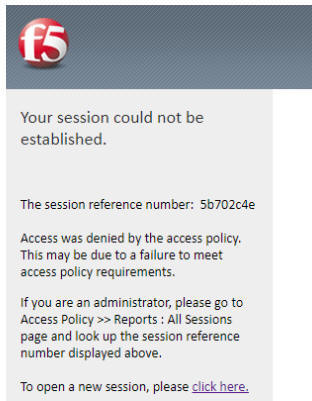
NOTE: Between mid October 2019 and mid February 2020 everyone in the Army was migrated to PIV AUTH certificate for Email access. You no longer select the Email certificate for Enterprise Email. If you see the below message after selecting your Email certificate, there is a good chance your account has been changed to using the Authentication certificate. So, please try your Authentication certificate instead of the Email certificate.
Mac users who choose to upgrade to Mac OS Catalina (10.15.x) will need to uninstall all 3rd Party CAC enablers per https://militarycac.com/macuninstall.htm
*****************************************
Created a 'retiring' page dedicated to providing information for people getting ready to retire. People need to understand they will no longer have access to DoD Enterprise Email and AKO once they surrender their CAC or date of retirement (whichever happens first). Information from DISA regarding EEmail
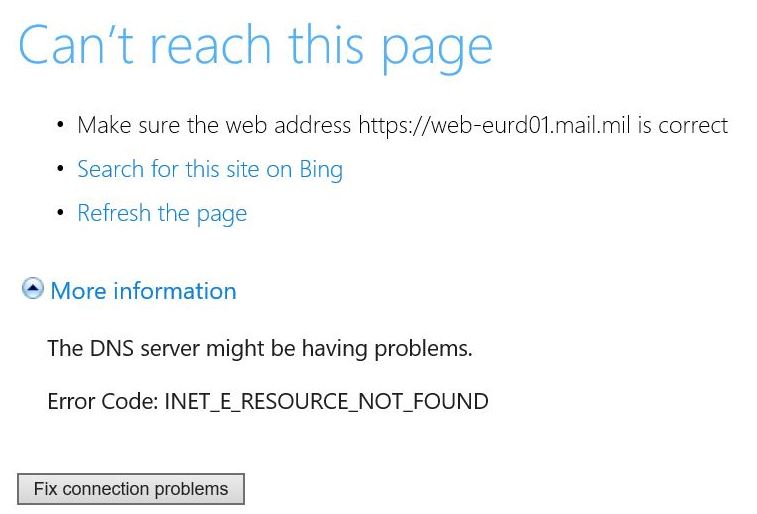
Receiving something similar to below image stating "The DNS server might be having problems. Error Code: INET_E_RESOURCE_NOT_FOUND"
or
Follow guidance here to change your DNS server.
Accessing https://web.mail.mil requires the steps below and an email account already created
Windows 10 users will see the certificate selection differently than older versions of Windows. Click More choices to see additional certificates. Select the correct one, and then click OK. To see the word "Authentication, you will need to ActivID 7.1.0.153 or 7.2.1.48 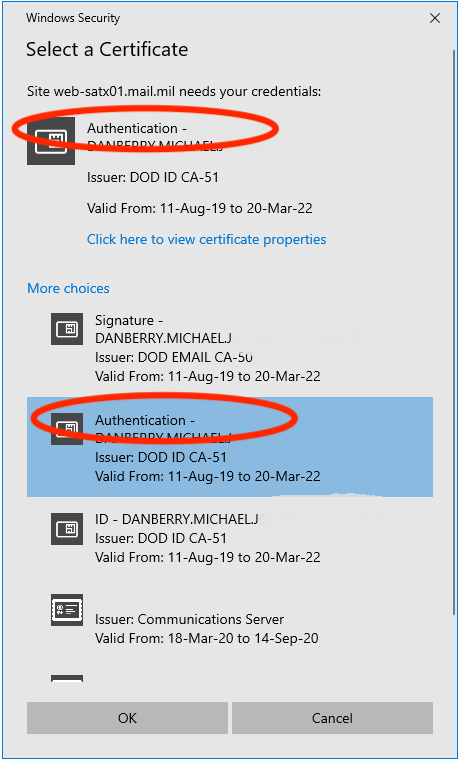 Mac Users - Some of the information below will not work for you. Start here for Mac specific instructions. If Mac user is dual persona / PIV AUTH, please look here to learn how to figure out which certificate is your actual PIV certificate. Chrome users will need select the non Email certificate, if you have two look for Smart Card Login in the certificate information after clicking the Certificate information (button). 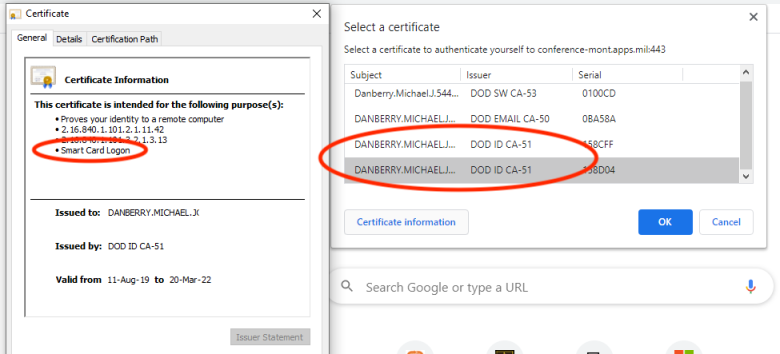
Problem 1: How can I check my DoD Enterprise Email other than OWA when I'm not in the office?
INFORMATION: The DoD Enterprise Email does NOT have the ability to be accessed using Outlook or other email program on a computer that is not on the .mil or .gov network. Read the 3 lines with double dashes. This means it cannot be set it up on a personal computer using Outlook.
Solution 1-1: Yes, you can forward it but, only to another .mil or .gov email address. (For all mail.mil users)
Solution 1-2: Yes, use your government owned / provided iPhone, iPad, or Android device (Only for Business Class users)
Solution 1-3: Yes, bring your government computer with you and use VPN (For all mail.mil users, normally only business class users)
Solution 1-4: If your organization uses Citrix, you may be able to use it to login with your CAC enabled home computer and access your Outlook via the Citrix client. (Only for Business Class users)
Solution 1-5: You can check your email via an iPhone or iPad using OWA or Android using a mobile CAC reader and middleware. (For all mail.mil users)
Problem 2: You receive the following error message when attempting to access https://web.mail.mil
Solution 2: You don't have an Enterprise Email account yet. Check back with your organization to find out the approximate date it will be created. All Army users will have their account created automatically within 24 hours of receiving your CAC. You can call the Army Enterprise Service Desk-Worldwide at 866-335-2769 to find out who your Entitlement Manager is for your command if you've had your CAC longer than 48 hours.
Problem 3: Your Email has transitioned to Enterprise Email and your information is incorrect in the Global Address List (GAL).
Solution 3-1: Picture guide created for US Army Reserve Soldiers, but will work for everyone
Solution 3-2: If your rank is wrong in the GAL (examples: 1SG vs. MSG, SPC vs. CPL vs. SP4, or SGM vs. CSM), you have to visit an ID card office to get it corrected.
Problem 4: Receive "HTTP/1.1 503 Service Unavailable" when attempting to access your email via OWA.
Information: This is caused when the Exchange server is down, or having problems.
Solution 4: Try accessing your email at a later time
Problem 5: How do I add my
PIV cert to my CAC, so, I can access
my email? . Solution 5: Follow guidance on PIV page
.
Problem 6: My calendar and times are off in my OWA calendar
NOTE: It is possible when you initially set up your OWA access you selected the defaults, which included the time zone set to Zulu time.
Solution 6: Click Options, See All Options..., Settings, Regional. Change Current Time Zone to your location in the world. Remember to click Save (lower right corner of screen)
Problem 7: I Can't view Encrypted emails in OWA / web.mail.mil (currently or prior to receiving a new CAC). Pre Step: Add 'https://*.mail.mil' to your trusted sites in Internet Explorer (PDF Instructions) Solution 7-1: Make sure you have the S/MIME control installed. Mail.mil users: This is only available in Internet Explorer (32 bit). It will NOT work with the 64 bit version of Internet Explorer, Edge, Chrome, Firefox, or on Macs.
Air Force users: Please look here for information utilizing Edge
Information: Browsers other than 32 bit Internet Explorer are not capable of using S/MIME in OWA, this is because it is an Active-X control. By design web browsers other than 32 bit Internet Explorer do not support Active-X (and Browser Helper Objects). An OPTION is to use DISA's Secure Access File Exchange (SAFE) (https://safe.apps.mil) if you are waiting for orders or something that has PII in it. Your unit can upload it to SAFE and you will receive a link to download the file(s) you need.
NOTE: Internet Explorer 11 runs in 32 bit mode by default, so, this should not be an issue. You would have had to have selected "Enable 64-bit processes for Enhanced Protected Mode" to run in 64 bit mode. More information can be read here.
Here's how to install s/mime: Click Options, See All Options..., Settings, S/MIME, click on download the S/MIME control
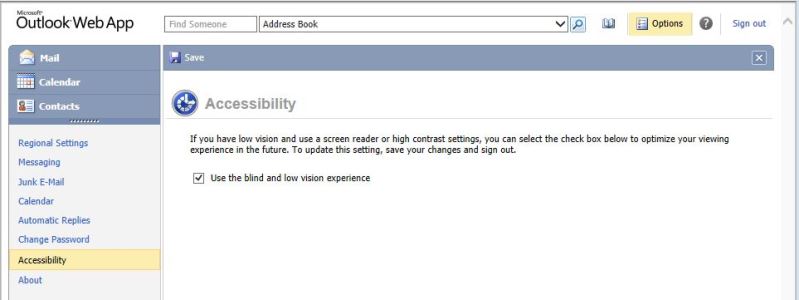
NOTE2: If you don't see these options, your settings may have you in "Use the blind and low vision" mode. To verify, Select Options, Accessibility. If your screen looks like the image below, uncheck the box next to Use the blind and low vision experience. Select Save (diskette above big word accessibility), Sign out, log back into your webmail, and follow instructions above.
. NOTE3: If you have problems installing the S/MIME control, make sure ActiveX Filtering in the Tools, Safety menu is unchecked, then attempt to download again. . Solution 7-2: Make sure you have your @mail.mil address on your CAC. Here's how to change / update your email address on your CAC. The process is practically identical to what you see on the PIV page.
Solution 7-3: If you have recently received a new CAC, follow this guide to recover your former CAC certificate(s), NOTE: you MUST be on the military UnClassified network to access the certificate recovery websites, which means you cannot access the links from your home computer.
Solution 7-4: If you are receiving a blank screen after logging into OWA, please follow this guide
Problem 8: How do I get support for my Enterprise Email account?
Solution 8-1 (when at Home or Work): Contact the Army Enterprise Service Desk - Worldwide by calling: 866-335-2769 24x7 or go to: https://aesd-w.army.mil
Solution 8-1a (Army Reserve): Contact the Army Reserve Help desk at: 844-770-3737, or [from your Army Reserve computer] go to: https://esahelp
Problem 9: How do I turn off conversation view in web.mail.mil?. Solution 9: Click View, uncheck Use Conversations.
Problem
10: I am over my storage limit, and I
can't send any email. How can I increase my email storage capacity?
DEE only gives me 512 MB,
what can I do?
Solution 10:
Problem 11:
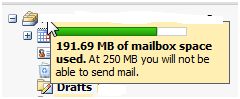
How can I find out how much mailbox space I'm using in OWA?
Solution 11: Hover your mouse over your
name, a bubble similar to this should pop up and show you.
NOTE: This only works on Windows computers
Problem 12: Receive message: "This message can't be decrypted. If you have a smart card-based digital ID, insert the card and try to open the message again" when using OWA
Solution 12: Make sure the email address on your CAC is also in your Exchange profile. NOTE: This is why Army users have @mail.mil email address on their CAC. You can update your email address by following this guidance.
Problem 13: I have PCSd to a new installation / location. How do I update my information in the Mail.mil Global Address List? NOTE: when you change your Installation, this will silently move your mail account to a closer DECC to your new duty station. You can see a list of them here.
Solution 13: Look at Solution 3-1 above
Problem 14: How do I configure my DoD Enterprise Email when at my Government computer using Outlook? NOTE: NOT available from home computer, OWA is only option
Solution 14: Follow this guide
Problem 15: You can get to https://web.mail.mil with your CAC and PIN. The next screen shows your actual mail server https://web-XXXX.mail.mil/owa however, this link only timeouts. It also times out if you go straight to it.
Solution 15: Follow this guide
Problem
16:
I live in Korea (or another foreign country) and am
unable to access some military
websites from my personal computer. What can I do?
Also helps problems accessing DoD sites from the USA
when receiving messages regarding DNS.
Solution
16-1:
Here's How in Windows
10 to manually configure
the DNS settings.
1. Right click on your Wireless / Ethernet
connection (down by your clock)
2. Select Open Network and Sharing Center,
or Open Network & Internet settings
3. Click Change Adapter
Settings, or Change adapter options
4. Right Click on your active internet connection
(example: Wi-Fi or Local Area Connection),
select Properties
5. Under This connection uses the following items:
scroll down and click on Internet Protocol Version 4 (TCP/IPv4),
then click Properties
6. Select the option Use the following DNS server addresses:. This is where you
manually configure your DNS servers:
NOTE: It is up to you if you want to use Quad 9 or Cloudflare. You might try each of them separately.
Quad 9 - enter 9.9.9.9 for Preferred DNS
server, and leave alternate DNS server blank. Click OK, then
click Close
or
Cloudflare - enter 1.1.1.1 for Preferred
DNS server, and 1.0.0.1 for alternate DNS server. Click OK, then
click Close
.
NOTE:
If you are a Spectrum customer, you may need to change the DNS on your router,
changing it on the client doesn't seem to allow access for some
users like the ideas
above.
Here's How in Windows 11
to manually configure the DNS settings.
1. Right click on your Wireless / Ethernet
connection (down by your clock)
2. Select Network and Internet settings
3.
Click on your active internet connection (example: Wi-Fi or
Local Area Connection), select Properties
4. Click on your Connected internet
properties
5. Scroll down to DNS server assignment,
click Edit
6. Select the drop down to change from
Automatic (DHCP) to Manual
7. Under IPv4 slide the little dot to the
right.
NOTE: It is up to you if you want to use Quad 9 or Cloudflare.
You might try each of them separately.
Quad 9 - enter 9.9.9.9 for Preferred DNS
server, and leave alternate DNS server blank. Click OK, then
click Save
or
Cloudflare - enter 1.1.1.1 for Preferred
DNS server, and 1.0.0.1 for alternate DNS server. Click OK, then
click Save
NOTE:
If you are a Spectrum customer, you may need to change the DNS on your router,
changing it on the client doesn't seem to allow access for some
users like the ideas
above.
Here's
How on a Mac to manually configure the DNS settings.
1. Click Apple icon -> System Preferences,
Network.
2. Select the network connection service you
want to use (usually Wi-Fi or Ethernet, unless you named it
something else) in the list, then click the Advanced
(button).
3. Click the DNS (tab), click the (+) at
the bottom of the DNS Servers list.
This is where you will add DNS server IP addresses.
NOTE: It is up to you if you want to use Quad 9 or Cloudflare.
You might try each of them separately.
Quad 9 - enter 9.9.9.9 and leave
alternate DNS blank
or
Cloudflare - enter 1.1.1.1 for first
line
and 1.0.0.1 the second line
4. When you're finished, click OK, then
close the open window
NOTE:
If you are a Spectrum customer, you may need to change the DNS on your router,
changing it on the client doesn't seem to allow access for some
users like the ideas
above.
Solution 16-2: Overseas personnel may
need to try a
VPN solution
Solution 16-3: Contact the Army Enterprise Service Desk
to let them know you are having problems.
Problem 17: You are trying to update
MilConnect
[are married to another Service member] and cannot get your information to show
you as the Sponsor. You are probably showing up as a family
member.
Solution 17: Follow guide in
problem 3-1 above
Problem 18:
I can't access my web.mail.mil email server, is the website
down?
Solution 18: Visit:
https://status.mail.mil (use your Email or PIV cert) you may be able
to find out information about the status of your
DECC.
Problem
19: Why am I being prompted for my PIN constantly when using
Windows 10, 8 / 8.1, 7 built in smart card utility, or with ActivClient 7.0.1.x and
7.0.2.x?
Solution 19: Windows 10, 8 / 8.1 built in smart card
utility. DoD Enterprise Email may
ask you constantly for
your PIN. The only solution I've found is for you to
install
ActivID 7.1.0.153
Problem
20: Firefox
refuses to cooperate with Mail.mil
Solution 20:
Follow installation guidance on Firefox page.
I followed #1, #2, & #3.
Problem
21: See "The ActiveX control needs to be enabled in
Internet Explorer for Outlook Web App to work correctly. Click
here to sign out, enable the ActiveX
control, and then sign in to Outlook Web App."
Solution 21:
Follow this
entire
guide.
Problem
22: See: "Your S/MIME control is out of date."
Solution 22:
Follow Solution above (Since
the instructions they give you here are missing a step).
NOTE: This will only work with Internet
Explorer (32 bit), NOT the 64 bit version (or on a Mac or any other
web browser)
Problem
23: Receive "Error Code: 500 Internal
Server Error. The server denied the specified Uniform Resource
Locator (URL). Contact the server administrator."
Solution 23 (Windows
users):
Follow this information
Solution 23 (Mac users):
Follow these ideas
Problem
24: The "New" button does not work to create a New email
(on Windows 8.1)
Solution 24: The problem is incompatible
Browser Mode and Document Mode. In order for IE 11 on Windows 8.1 to work with the EE-OWA, the Browser Mode can be any from IE11
(regular or Compatibility Mode) to IE7 and the Document Mode MUST be IE8 Standards or higher (e.g. IE9
Standards). Access
that Menu by pressing F12. A small window will open at the
bottom of the browser. The options are on the right of the
Menu Bar of that small window.
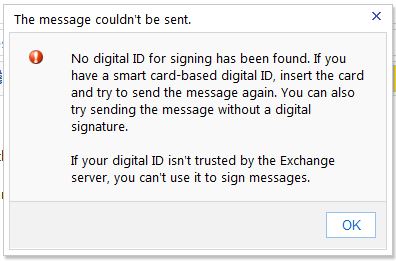
Problem 25: I am receiving the error message: "No
digital ID for signing has been found. If you have a smart
card-based digital ID, insert the card and try to send the message
again. You can also try sending the message without a digital
signature."
Information:
This affects users who have their AKO email
address on one or both military and civilian CACs.
Solution 25-1:
Update
/ change email address on your CAC(s) to your Enterprise Email
address.
Solution
25-2: Visit an ID card office to have
them update
your email address on your CAC(s) to your DoD Enterprise Email
address.
Solution
25-3:
Your computer still has your certificates from
your former CAC, and is trying to use them instead of your new CAC
certificates. Follow slide 23 in this
guide to clear them.
Problem 26: Web.mail.mil / OWA locks up
when trying to delete a thread of email, moving messages, and
dismissing reminders.
NOTE: You may have received an
update to Skype on your Windows computer. This update comes
with Skype Click to Call (C2C). People have noticed the issue appear and also noticed
phone numbers in emails suddenly appeared in blue (hyperlinks) with
a Skype symbol next to them.
Solution 26: Uninstall C2C and the issue with
locking up OWA when deleting email threads, moving messages, and
dismissing reminders will go away.
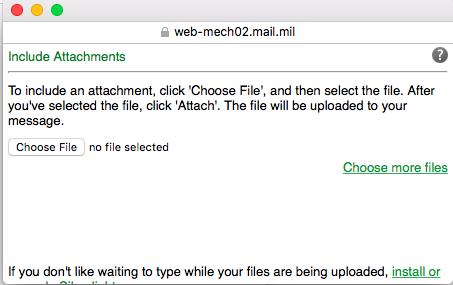
Problem 27: When forwarding emails from web.mail.mil, the attachments are not showing in the message, but somehow the recipient is still getting the attachment.
Solution 27: The attachment is hidden from your current view. Follow guidance in Problem 28)
Problem 28: I cannot see my attachments once I add them to a new email message in OWA when using Internet Explorer 11? How do I know they are actually there before I send the email? . Solution 28-1: Add the attachment to the email you are creating. Save the email as a draft. Close the email message, reopen it. You should now see that the attachment is in the outgoing email.
Solution 28-2: Use Google Chrome when sending attachments. Please know you will not be able to encrypt email when using Chrome.
Solution 28-3: Make sure you have Silverlight installed (http://www.microsoft.com/getsilverlight)
Solution 28-4: Follow this guide when using Internet Explorer
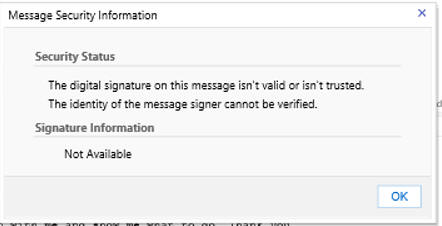
Problem 29: Receiving a message stating: There were problems validating this signature. (More information) when trying to read encrypted or signed emails in OWA
When you click on More information, you get this
Solution 29: Add https://*.mail.mil to your web browser's Trusted Sites (I know this goes against other guidance on this website).
Here's how: Open Internet Explorer, Tools, Internet Options, Security (tab), Trusted Sites (green checkmark), Sites (button), Copy https://*.mail.mil and paste it into the Add this website to the zone: (box), select Add, then close to get out of Trusted Sites.
Other branches of the military should follow this guide
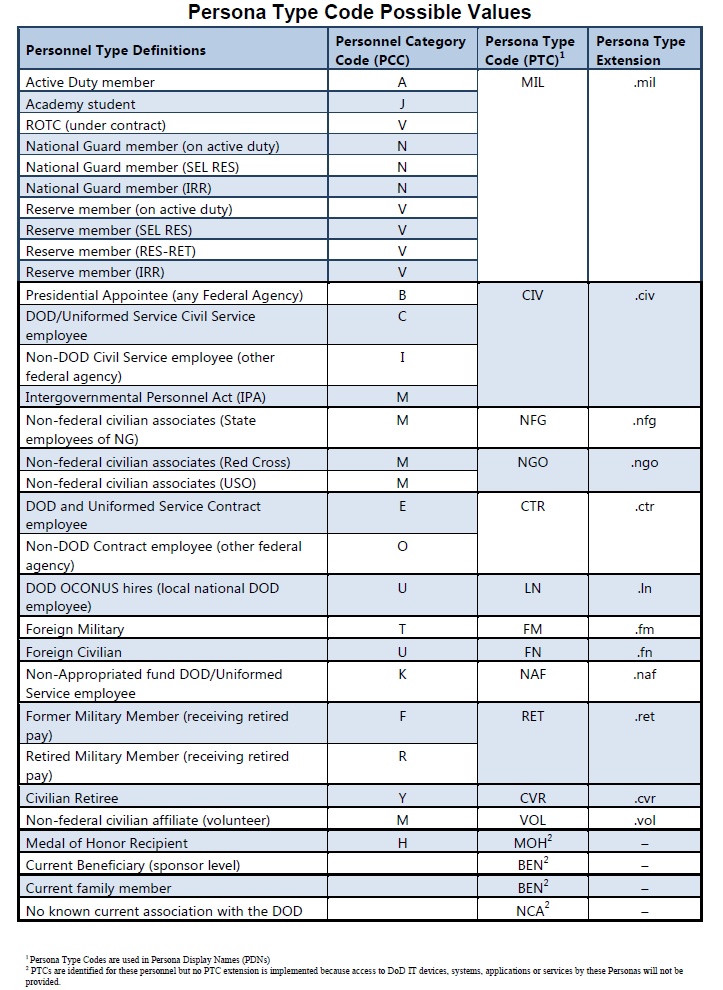
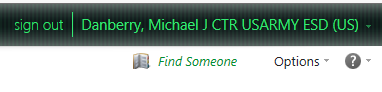
Problem 30: What do the 3 letters mean after your name and before the @ sign? Example: first.m.last.mil@mail.mil
Information 30:
Information 30a:
The Authentication certificate is comprised of your 10 digit DoD ID # followed by 6 more
digits
The 1st digit is the Organizational Category
1 = Federal Government Agency
2 = State Government Agency
3 = Commercial Enterprise
4 = Foreign Government
Source: Paragraph 5.1.5.2.8
https://militarycac.org/files/DoD_PIV_Transitional_Implementation_Guide.pdf
The 2nd through 5th are the Agency Code
2100 = Department of the Army
5700 = Department of the Air Force
1700 = Department of the Navy
1727 = Department of the Navy - US Marine Corps
9700 = Department of Defense - Other Agencies
7008 = US Coast Guard
7520 = US Public Health Service
1330 = National Oceanic and Atmospheric Administration
Source: Paragraph 5.1.5.2.1
https://militarycac.org/files/DoD_PIV_Transitional_Implementation_Guide.pdf
The 6th position is the Person / Organization Association
Category
1 = Employee, example: NAF (Non Appropriated Funds)
2 = Civil, example: CIV or LN (Civilian or Local National)
3 = Executive Staff
4 = Uniformed Service, example: MIL (Military)
5 = Contractor CTR (Contractor)
6 = Organization Affiliate, example: NFG / Volunteer / Foreign Military (Non-Federal Government)
7 = Organization Beneficiary
Source: Paragraph 5.1.5.2.10
https://militarycac.org/files/DoD_PIV_Transitional_Implementation_Guide.pdf
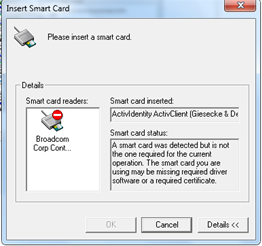
Problem
31: After receiving a new CAC, you receive the
following message when trying to use your CAC. "A
smart card was detected but is not the one required for the current
operation. The smart card you are using may be missing
required driver software or a required certificate."
Solution 31:
Your computer still has your certificates from your former CAC, and
is trying to use them instead of your new CAC certificates. Follow
slide 23 in this
guide to clear them.
Kaspersky users
-
Solution 35: Close OWA, download and install
Microsoft Silverlight from:
https://www.microsoft.com/getsilverlight once
installed, log back into OWA and attach your file to your email.
Problem
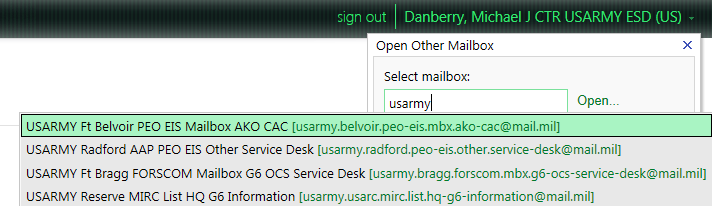
36: You are a member of a Non Persona Entity (NPE)
mailbox and need to access it via web.mail.mil
Click on your name
Start typing the name of the mailbox, you'll see it start to
populate
Problem
37: Receive error message "One or more errors
occurred while the message was being sent. Error:
(0x80004003)" with
Lync or Skype installed when trying to send emails in OWA.
Solution 37: In Internet Explorer, click
Tools, Manage Add-ons. Find and select Lync
Browser Helper, click the Disable button
Problem
38: Receive error message "This message can't be decrypted
because its encryption algorithm isn't supported or your digital ID
can't be found. If you have a smart card-based digital ID, insert
the card and try again to open the message."
or the same message followed by:
"The digital signature of this message couldn't be validated because
an error occurred while the message was being loaded."
Information 38: This error can be caused by
the certificate in the Global Address List does not match what is on
your CAC. Commonly caused with new cards issued within 24-48 hours.
Solution 38 (OWA
users) part 1:
Login to the Global Directory Service (GDS) at:
https://dod411.gds.disa.mil/index.html (CAC required link (ID
Certificate)),
Enter your last name and
first name, click Search.
Click your underlined last name,
Select Download Certificate(s)
as .cer file (Non-Outlook Users).
Save the file to your computer.
Double click the .cer file to view
the valid from and to dates.
Now open your IE web browser,
navigate to Tools, Internet Options, Content (tab), Certificates
(button), Personal (tab),
Select either of your Email
certificates and select View (button), if these dates do
not match the other file, then the GAL has the wrong certificate for
you.
Solution 38 (OWA users) part 2: Follow guidance on
PIV activation page to set up your Windows
computer for the site. Then
follow these instructions except DO NOT add a PCC
to your CAC, if you do, you can
try this idea,
if it doesn't' work, you'll need to get a new CAC to undue it.. Click in email address block,
and don't change it, but select the button for changing it.
After roughly 30 hours, your certificate will publish to the GAL and
the errors should go away.
Solution 38 (Outlook users on Government computer):
Publish your certificates to the GAL using Outlook,
here's how:
-Outlook 2016, 2013, & 2010: File (tab), Options, Trust Center, Trust Center
Settings...(button), E-mail Security, Click on Publish to
GAL...(button)
-Outlook 2007: Tools, Trust Center..., E-mail
Security, Click on Publish to GAL...(button)
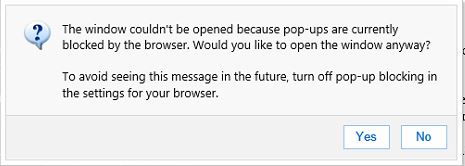
Problem
39: While using OWA, you receive the following error
message: "The window couldn't be opened because pop-ups are
current blocked by the browser. Would you like to open the window
anyway? To avoid seeing this message in the future, turn off
pop-up blocking in the settings for your browser."
Solution 39: Uncheck "Enable 64-bit processes
for Enhanced Protected Mode*"
Here's where to find it: Open Internet Explorer,
click Tools, Internet Options, Advanced (tab), scroll down to the
the Security section.
Problem
40: Receive error message "This message can't be sent
in an encrypted form
because your computer doesn't work with the required encryption
methods. To send the message, remove encryption. If the
problem continues, contact your helpdesk." or "One or more
errors occurred while the message was being sent. Error:
(0x80040154)"
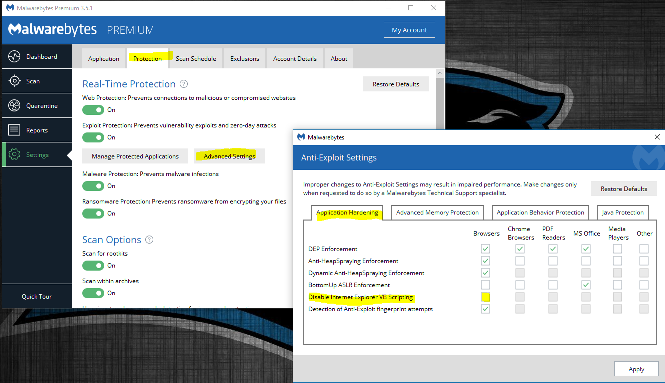
Solution 40-1: If you have MalWare Bytes (MB) installed,
it is blocking the VBScript from allowing you to send an email via
OWA. You can right click it and close the program to see if
this is what is causing your issue. If that doesn't work, try
Solution 40-2 below.
Solution
40-2: Open Settings, Protection
(tab), Advanced Settings (button), Under the Application
Hardening (tab), Uncheck Disable Internet Explorer VB Scripting
(under the Browsers heading),
click Apply
Question: What
exactly is "Dual Persona?"
Answer: The easiest way to explain is to give you an
example: an Army Reserve [or
National Guard]
Soldier who is also a DoD civilian [or
contractor] and is authorized [or required] to have / carry / use two separate CACs. We are finding
that people who were previously a contractor [or civilian] during the past
three years [even if they left the job a year ago] are still classified
as a Dual Persona in the eyes of DMDC
and DISA.
Individuals that fall into this category
HAVE to activate their PIV cert to be able to access their email
on the DoD Enterprise Email.
|
||||||
If you have questions or suggestions for this site, contact Michael J. Danberry
. Last Update or Review: Wednesday, 24 January 2024 10:42 hrs
The following domain
names all resolve to the same website: ChiefsCACSite.com,
CommonAccessCard.us, CommonAccessCard.info, & ChiefGeek.us
|




 Macs
can try this option:
Macs
can try this option: